Introduction to Mobile Phones for Blind People
Over 40 million people worldwide are blind, and smartphones have become essential tools for independence and connection. Modern mobile phone for blind people go far beyond simple calls: they offer powerful accessibility features like screen readers, voice commands, and AI vision apps. In fact, research shows that smartphones significantly enhance autonomy and safety for visually impaired users. Yet many blind users are still unaware of the full potential in their devices. This guide will help you understand what features to look for, and which phones are best suited for blind or low-vision users.
Why Accessible Phones Matter
Accessible phones can transform daily life for people who are blind or have low vision. New technology – from built-in screen readers to AI-powered navigation apps – improves quality of life, autonomy, and safety. For example, wearable and smartphone apps (like navigation aids and object recognition) help blind users travel more independently, reducing barriers to social and work activities. In one study, nearly half of blind adults (47%) reported using a smartphone, primarily for social media (96%) and web browsing (92%). However, most users weren’t aware that 90% of the features they wanted (image description, color ID, etc.) already existed on modern phones.
Smartphones now rival specialized assistive devices. Pioneering accessibility features like VoiceOver (on iPhone since 2009) have “revolutionized” how blind users interact with touchscreens. On Android, the TalkBack service provides spoken feedback and gestures to navigate without sight. Voice assistants like Siri or Google Assistant also let users control their phones by voice. All these tools make mainstream phones viable for blind users, reducing the need for separate assistive gadgets.
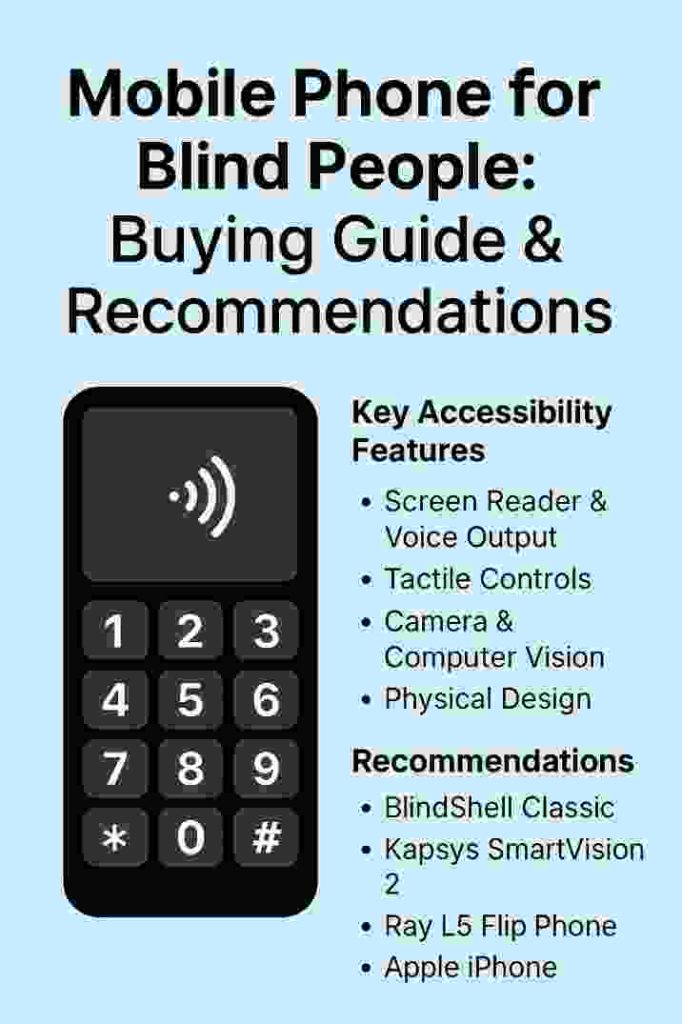
Key Accessibility Features to Look For
When choosing a mobile phone for blind people, focus on features that make the device easy to use without sight. Important features include:
- Screen Reader & Voice Output: Built-in screen readers (VoiceOver on iOS, TalkBack on Android) read out on-screen text and icons. Good speech rate and clear voices are crucial. Also look for audio feedback (confirming actions, battery status, etc.) and voice assistants (Siri, Google Assistant). iPhones and modern Androids support typing feedback and audible notifications as well.
- Tactile Controls: Some phones provide physical buttons or keyboards to aid blind users. For example, devices like the Unihertz Titan Slim run a “BIG Launcher” interface with large icons and a tactile keyboard. Similarly, specialized phones (e.g. BlindShell Classic) have high-contrast buttons and talk out-of-box to orient users. Even on touchscreens, features like vibration, haptic feedback, and high-contrast themes help.
- Camera & Computer Vision: Look for phones with decent cameras and access to assistive apps. Image recognition apps (e.g. Seeing AI, Google Lookout) can describe objects, read text, or identify colors via the camera. One study found that color and object description were among the most-requested features by visually impaired users. Many smartphones offer scene description and optical character recognition.
- Physical Design: A high-contrast, large-font display is helpful for low-vision users. Phones with large, well-spaced buttons (or tactile markings) reduce input errors. An emergency or quick-access button can also be useful.
- Durability and Battery Life: Blind users often rely on audio cues (which require good speakers) and may be less likely to see a low battery icon. Choose phones with loud audio output and long battery life. Ruggedness matters too – sturdy build quality can prevent costly drops.
Example – Tactile Keyboard Phone
Some smartphones are designed with tactile keypads and high-contrast launchers for easy use. For instance, the Unihertz Titan Slim runs BIG Launcher, a simple interface for seniors and visually impaired users. It has large, clearly labeled buttons and speaks actions aloud. Embedding image above: note the physical keypad and bold display. As one expert notes, having “a keypad where they can position their fingers and know where the numbers are” makes a big difference.
Types of Phones for Blind Users
There are two main categories of phones for blind people: specialized accessible phones and mainstream smartphones. Each has pros and cons.
Specialized Accessible Phones
These devices (like BlindShell Classic, Kapsys SmartVision 2, or Ray L5) are built specifically for visually impaired users. They often combine classic phone design with assistive features: large physical buttons, high-contrast screens, and built-in voice guidance. For example, the BlindShell Classic has a candy-bar form factor with spaced buttons and speaks menus aloud right from startup. Reviewers praise its accessibility: as soon as you power it on, “everything about that was accessible,” with text-to-speech providing guidance. The device even includes features like a magnifier, audio player, and “tag” system to identify objects.
Similarly, the Kapsys SmartVision 2 is another phone tailored to blind users: it “speaks menus” and allows button, touch, or voice navigation. It offers multiple high-contrast modes and can pair with braille displays. The Ray L5 flip phone combines a touchscreen with tactile keys and can identify colors/currency by voice. These phones simplify the user interface and often include specialized apps (reading, GPS for navigation, etc.). However, they may be more expensive and have fewer “mainstream” features than typical smartphones.
Mainstream Smartphones (iOS and Android)
Modern Android and iOS phones are increasingly accessible. Apple iPhones have an excellent reputation for blind-friendly design, thanks to VoiceOver and other features. iPhones have had built-in screen reading since 2009 and continually improve voice controls. They support multiple voice languages, in-place magnification, and Braille display connectivity via Bluetooth. As one article notes, iPhones are “great for blind people,” with voiceovers that “read everything” and announce battery life or app names.
On the Android side, phones from Google, Samsung, Motorola, etc., support TalkBack (Android’s screen reader) and Google Assistant voice control. Android even has a built-in Braille keyboard in newer versions. Many blind users appreciate features like “TalkBack gesture shortcuts,” “Select to Speak,” and improved compatibility with third-party apps. For example, Google Pixel phones allow tasks (texting, navigation, notifications) to be done entirely by voice. The Android Accessibility Suite has over 5 billion installations, reflecting widespread use. Essentially, a modern Android flagship (Pixel, Galaxy, OnePlus) can serve as a powerful accessible smartphone if set up properly.
Whether mainstream or specialized, it’s crucial to test the phone’s ease of use. Some blind users prefer a simple flip phone with big keys, while others adapt well to touchscreens with assistive features. Many blind seniors, for example, like the Jitterbug Flip – a large-button flip phone with voice dialing and a speakerphone. Its simple interface, big buttons, and even a built-in magnifier make calling and texting easier. In short, the “best” phone depends on personal preference: tactile interface vs. touchscreen, budget, and needed features.
Top Recommended Phones
- BlindShell Classic (3) – A popular accessible phone with a keypad and voice menus. Buttons are large and high-contrast. As soon as it powers on, it speaks to the user. It includes emergency calling, object tagging, and audio books. Reviewers note it is lightweight and easy to use. (Windows Link: N/A)
- Kapsys SmartVision 2 – Another dedicated phone, with spoken menus and a large display. It supports braille displays, has NFC, GPS, and even object identification. Multiple color/contrast modes help low vision users. Good for those who want a feature phone form factor.
- Ray L5 Flip Phone – A flip phone with Android OS designed for the blind. It has a traditional keypad plus a touchscreen. Unique features include color and currency identification, voice dialing by contact name, and a custom “Ray Vision” app.
- Jitterbug Flip (Lively Jitterbug) – A senior-friendly flip phone with big buttons and voice dialing. Its speakerphone and large font display make calling simple. It also includes a small magnifying lens for reading labels. Affordable and easy for basic use.
- Apple iPhone 15 (or latest) – A mainstream smartphone with world-class accessibility. Built-in VoiceOver, Siri, Zoom, Magnifier, and high-contrast display options make it highly usable without vision. Supports multiple languages and haptic feedback. Has top-tier camera (for apps like Seeing AI) and performance. For many blind users, an iPhone is the “go-to” choice due to its reliability.
- Google Pixel (e.g. Pixel 8) – An Android flagship with Google Assistant and latest Android accessibility tools. Offers TalkBack, a built-in braille keyboard, and AI-driven vision features like Live Translate. Voice controls allow hands-free use: you can ask Google to send texts, get directions, or describe surroundings. Pixels also tend to receive Android updates quickly.
- Other Android Phones (Samsung, Motorola, etc.) – Many Android phones (Galaxy, OnePlus, Moto G, etc.) support similar features. For example, Samsung Galaxy phones have “Voice Assistant” mode and high-contrast display options. One Android review notes that a 5.7-inch display and fingerprint sensor can be helpful for low-vision users. Consider any phone with a large screen, good speakers, and the latest Android OS.
Each of the above phones has trade-offs. Specialized phones (BlindShell, Kapsys, Ray) excel in simplicity and out-of-box accessibility, but may lack advanced apps. Smartphones (iPhone/Android) offer more power and versatility, but have a steeper learning curve. Most experts recommend trying devices in person if possible, ensuring menus and gestures work for you. Always check that the store or seller can show you basic voice commands and accessibility settings.
Buying Tips for Blind Users
When shopping for a phone, keep these tips in mind:
- Ease of Use: Choose a phone that feels intuitive. Some blind users prefer tactile buttons and a simple menu. Others do well with a touchscreen. Consider how you’ll dial or navigate apps. Try out the phone’s speech feedback right away.
- Contrast and Display: High contrast or large text options are important for low vision. Look for phones with adjustable contrast screens or built-in Magnifier features.
- Button Style and Size: If a physical keypad is important, get large, well-spaced buttons. Touchscreens should allow large text/fonts or screen magnification.
- Speech Recognition: Voice dictation and assistants (Siri/Google) are very helpful. Ensure the phone’s voice assistant works reliably. Most modern phones have robust voice typing and commands.
- Audio Quality: Good speakers and headphone support are a must. Audio feedback (notifications, voiceovers) is the main interface, so volume and clarity matter. If possible, test the speaker volume.
- Durability: A sturdy build helps avoid breakage from drops. Also check if the phone has a strong grip or case. Some users add textured stickers or straps.
- Battery Life: Long battery life is crucial since you might not easily see a low-battery icon. Look for phones with at least a day’s battery and consider fast-charging options.
- Warranty and Support: Check if there’s a good return policy or tech support for accessibility issues. Some companies (or agencies) offer training or demos for blind users.
Buying a phone for someone who is blind or visually impaired requires balancing functionality and simplicity. It’s wise to involve the user in testing basic operations (like making a call or sending a text) before purchasing.
Useful Apps and Assistive Technology
Aside from hardware, smartphones become even more powerful with apps designed for blind users. Some popular options:
- Seeing AI (iOS): A free Microsoft app that narrates the world – it can recognize products, read documents aloud, identify currency, and describe scenes.
- Google Lookout (Android/iOS): Uses AI to label objects, read text, and detect colors for low-vision users.
- Navigation Apps: Apps like BlindSquare, Karta GPS, or Soundscape provide audio navigation and venue information, useful for independent travel.
- Reading and OCR: Apps such as Envision AI or KNFB Reader can read printed text via the camera.
- Braille Displays: Many smartphones can pair with Bluetooth Braille displays (e.g. Focus, BrailleNote Touch) for input/output. This is helpful for fluent Braille users.
- Voice Assistants: Siri (iPhone) or Google Assistant can perform a wide range of tasks by voice – setting alarms, sending messages, playing music, etc.
- Miscellaneous Tools: Magnifier, high-contrast color filters, color ID apps, and mindfulness/alert apps all exist to help.
These apps often come pre-installed or are free. They leverage the phone’s hardware (camera, GPS, mic) to substitute sight. While not a substitute for a guide dog or cane, they significantly expand what a blind person can do independently.
FAQs for Mobile Phones and Blind Users
Q: What features should a mobile phone for blind people have?
A: It should include a screen reader (VoiceOver or TalkBack), voice assistant support (Siri, Google Assistant), and options for large text/high contrast. Physical features like big buttons or a tactile keypad can help, as can good speakers and long battery life. Other useful features are camera-based AI apps (for reading text or identifying objects), and compatibility with Braille displays.
Q: Can blind people use regular smartphones effectively?
A: Yes. Modern smartphones are designed with accessibility in mind. For example, Apple’s iPhone has VoiceOver (screen reading) built-in, and Android phones have TalkBack. With these tools and voice commands, a blind person can text, call, use apps, and browse the web. According to experts, many visually impaired users now prefer using smartphones (often over dedicated assistive devices) for everyday tasks.
Q: Are there phones specifically made for blind or visually impaired users?
A: Yes. There are specialized phones like BlindShell, Kapsys SmartVision, and Ray models which focus on simplicity and voice guidance. They usually have physical buttons, clear menus, and speech feedback by default. These can be easier to learn for someone who finds modern touchscreens challenging. However, any smartphone (iPhone or Android) with the right accessibility settings can also meet most needs.
Q: Which is better for blind users: iPhone or Android?
A: Both have strengths. iPhones are widely praised for their robust built-in accessibility and consistent updates. iOS may be easier for some new users. Android offers flexibility and a wide range of devices, plus Google’s AI apps (like Lookout). Android’s TalkBack and Assistant are very capable. The “better” choice depends on personal comfort, budget, and which ecosystem the user is familiar with.
Q: How do blind people navigate a smartphone?
A: Blind users typically rely on gestures and audio feedback. For example, VoiceOver (iPhone) or TalkBack (Android) will speak menu items aloud. You can swipe or tap in specific patterns to move through menus. Voice commands (e.g. “Hey Siri, call John”) are also common. Many blind users connect headsets or use external Braille displays. Training and practice are important – luckily, many community resources and tutorials exist (e.g. via AFB, Hadley Institute) to help new users learn the gestures and settings.
Conclusion
Choosing a mobile phone for blind people means prioritizing accessibility and ease of use. Whether it’s a specialized device like the BlindShell Classic or a mainstream smartphone (iPhone/Android) with all settings enabled, the goal is to find a phone that speaks and listens for the user. Key factors are good speech output (voiceover/talkback), tactile or high-contrast controls, and reliable voice control. Phones that support assistive apps (for reading, navigation, etc.) are a big plus. In summary, the best phone will depend on the user’s needs and preferences – but modern devices offer incredible tools to empower blind users in everyday life.
If you found this guide helpful, please share it with others or leave a comment below with your questions. Your feedback helps improve resources for the blind community!
About the Author